Quick Start Guide
Get from zero to your first security scan in under 10 minutes. This guide walks you through account setup, tenant connection, and running your first compliance scan.
- A Microsoft 365 tenant with Global Administrator access
- Permissions to consent to application permissions in Microsoft Entra ID
- Access to edit Conditional Access policies (required for scheduled scans)
- 10 minutes of time
Create Your TrueConfig Account
Navigate to the TrueConfig homepage and click "Get Started" to create your account. You have two sign-in options:
- Sign in with Microsoft (recommended): Use your Microsoft work or school account for seamless authentication. This is the fastest way to get started.
- Magic link: Enter your email and we'll send you a secure sign-in link. No password required.
After Sign Up
Your organization is automatically created based on your email domain. For example, signing up with admin@contoso.comcreates an organization named “contoso.com”.
Team members with the same email domain can join your organization automatically. You'll be taken directly to connect your first Microsoft 365 tenant.
Connect Your Microsoft 365 Tenant
Once signed in, you'll be guided through the tenant connection flow. This uses OAuth 2.0 with Microsoft to securely authorize TrueConfig to read your tenant configuration.
Connection Flow
Click "Connect Tenant"
From your organization dashboard, click the "Connect Tenant" button. You'll be redirected to Microsoft's login page.
Authenticate as Global Administrator
Sign in with a Global Administrator account for the tenant you want to monitor. This is required to consent to the necessary permissions.
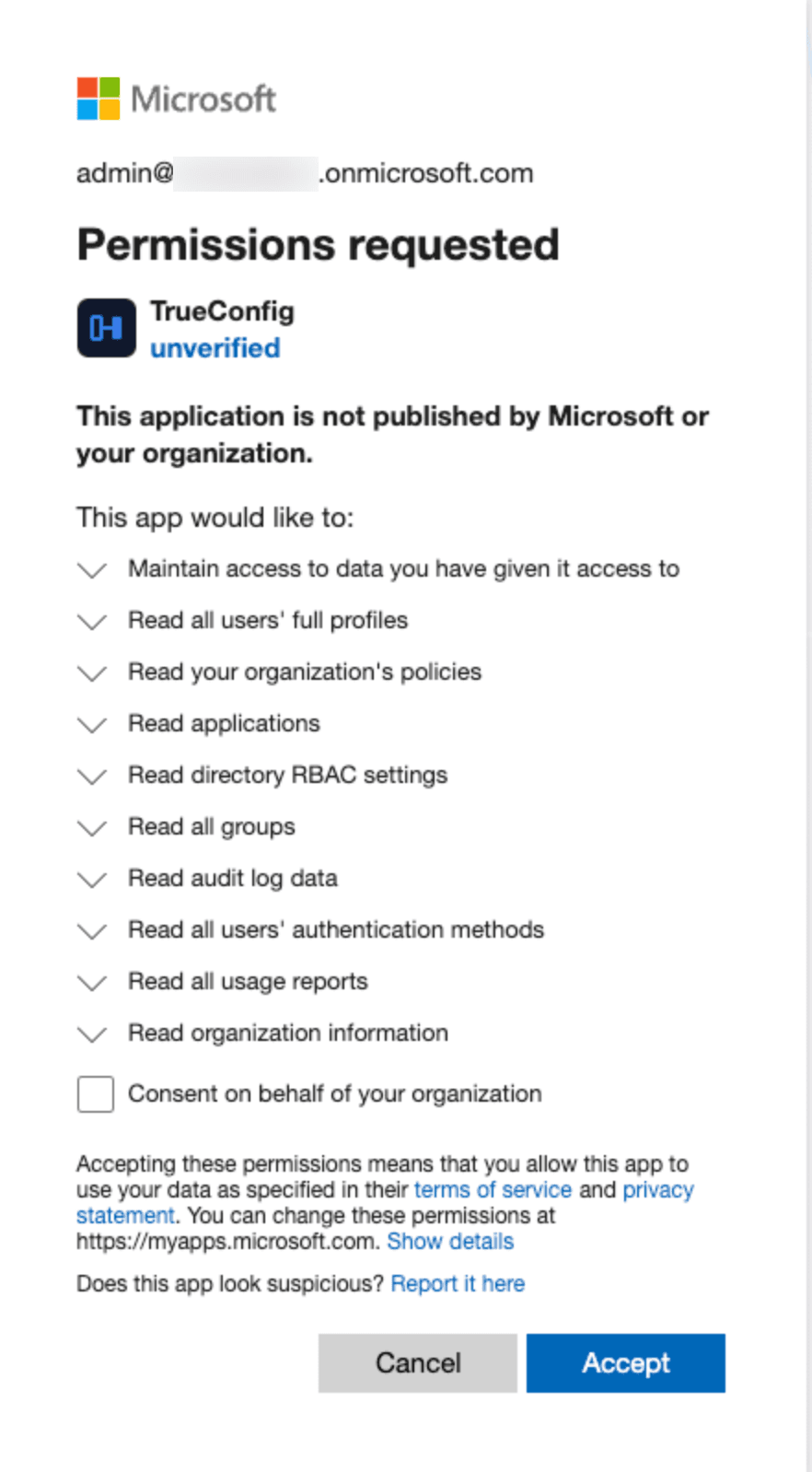
Review and Accept Permissions
TrueConfig requests read-only permissions to view your users, groups, policies, and apps. Write permissions are optional and only needed if you want to use one-click fixes. You can always add write permissions later.
Confirm Tenant Details
After consent, you'll be redirected back to TrueConfig. Confirm your tenant name and domain, then click "Complete Connection."
Exclude TrueConfig from Conditional Access
TrueConfig runs scheduled scans in the background to continuously monitor your tenant. These background operations cannot satisfy interactive authentication requirements like MFA prompts.
How to Exclude TrueConfig
Open Conditional Access
Edit Each MFA/Compliance Policy
For each policy that requires MFA or device compliance, click to edit it.
Add TrueConfig to Exclusions
Go to Users → Exclude → Service principals, search for “TrueConfig”, select it, and save the policy.
Which Policies Need Exclusions?
- Require MFA — TrueConfig cannot complete MFA in the background
- Require compliant device — Background services don't run on devices
- Require hybrid Azure AD join — Same as device compliance
Review Your Baseline Settings
When you connect your tenant, TrueConfig automatically adopts the Level 1 baseline—a safe starting point that won't disrupt your users. Review the baseline levels below to understand what's being evaluated. You can upgrade to a higher level anytime from your tenant settings.
Reduces attack surface: Each control addresses a specific security gap that attackers exploit—MFA, legacy auth, excessive privileges.
Aligned with standards: Our baselines map to CIS Benchmarks and Microsoft's security recommendations, supporting compliance audits.
Saves time: Instead of researching best practices, you get a curated, tested set of controls with clear remediation guidance.
Level 1: Recommended Secure
Auto-adoptedYour starting baseline
Advisory mode with low operational risk. Establishes foundational security without lockout risks. Aligned with CIS Benchmarks and Microsoft Secure Defaults.
- MFA enforcement for all users
- Block legacy authentication
- Limit Global Administrators (≤3)
- App ownership and secret expiration
Level 2: Enhanced Security
For security-conscious organizations
Active enforcement with PIM requirements and phishing-resistant MFA for admins. Moderate operational impact with significantly improved security.
- Everything in Level 1
- PIM-only for privileged roles
- Phishing-resistant MFA for admins
- Device compliance requirements
Level 3: Maximum Security
For regulated industries
Strict enforcement with zero-tolerance for deviations. Designed for regulated industries, government, and high-value targets.
- Everything in Level 2
- Phishing-resistant MFA for all users
- Hardware security keys for admins
- Continuous access evaluation (CAE)
Run Your First Security Scan
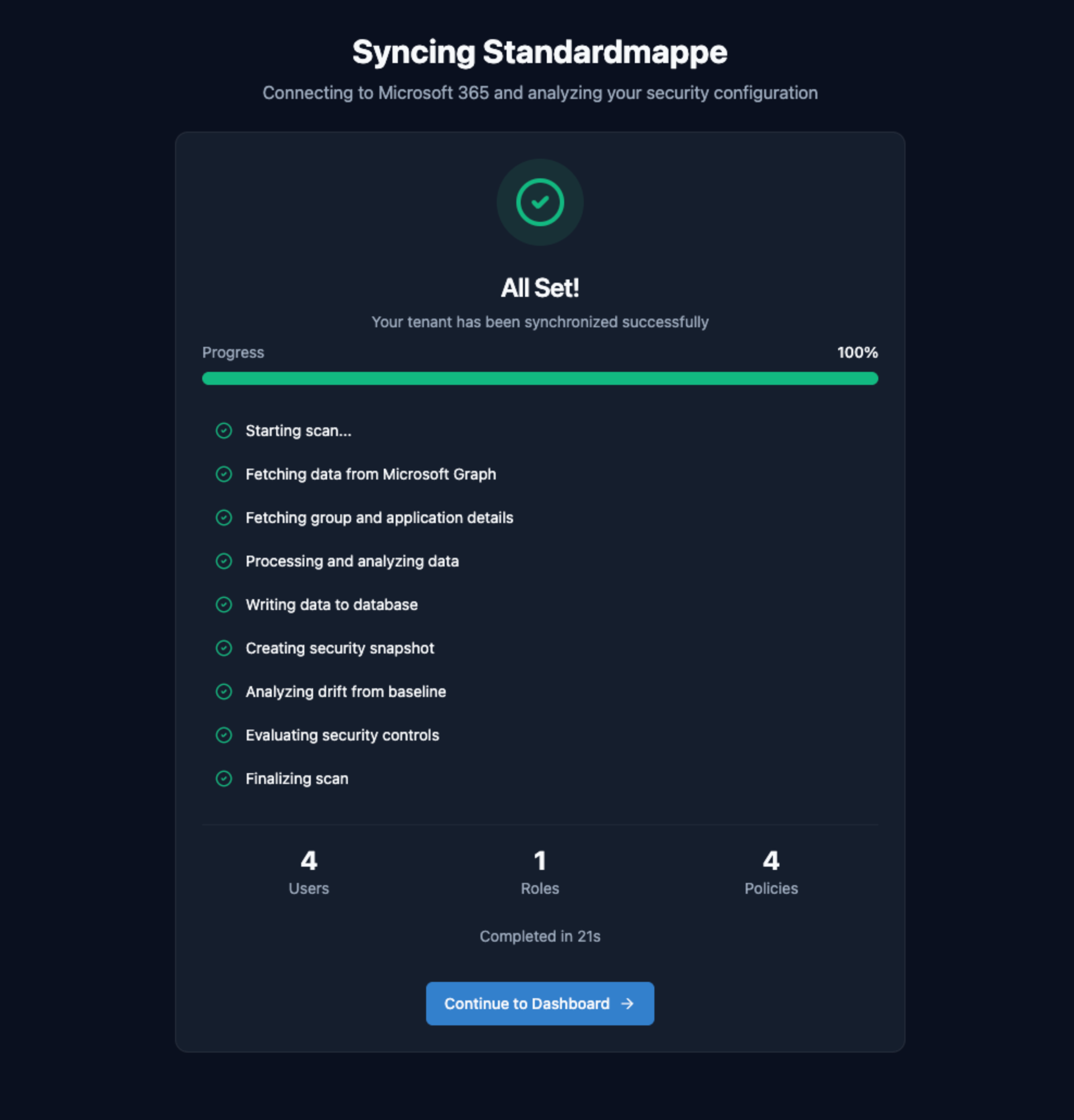
After selecting your baseline, TrueConfig will automatically trigger your first scan. You can also manually trigger scans at any time from the tenant dashboard.
What Happens During a Scan
Data Collection (15-30s)
TrueConfig queries Microsoft Graph API for users, groups, roles, role assignments, app registrations, service principals, and Conditional Access policies.
Data Normalization (5-10s)
Raw Graph API responses are normalized and stored in scan tables (tenant_users, tenant_roles, tenant_role_assignments, etc.).
Control Evaluation (10-20s)
TrueConfig checks your configuration against each security control in your baseline and records the results.
Audit Trail Recording
All evaluation results are persisted to the dsc_evaluations table, and immutable audit events are recorded in dsc_events for compliance tracking.
Review Scan Results and Take Action
After your scan completes, you'll see a dashboard showing your overall baseline alignment and individual control results.
Understanding Your Results
Posture Score
Your posture score shows the percentage of baseline controls that are passing. Controls that fail or need attention are highlighted in the dashboard with remediation guidance.
Control Details
Click on any control to see detailed evaluation results, including evidence, affected resources, and remediation guidance.
Remediation Guidance
For failed controls, TrueConfig provides step-by-step remediation instructions:
- What to fix: Clear description of the issue
- Why it matters: Security impact and threat context
- How to fix: Step-by-step instructions with Microsoft Portal links
- Verification: How to confirm the fix was successful
What's Next?
Congratulations! You've completed the quick start and run your first security scan. Here are some recommended next steps:
Understand Baselines
Learn how baselines work, how controls are organized, and how to customize thresholds for your organization.
Explore Controls
Dive deep into the DSC control framework, evaluation engine, and how controls map to security threats.
Enable Auto-Remediation
Learn how to safely enable auto-remediation with safety gates, approval workflows, and rollback procedures.
Understand Controls
Learn how security controls work, how drift is detected, and what each control evaluates.