Notifications
Stay informed about security deviations, scan completions, and drift events. Configure notifications via email, Microsoft Teams, or Slack.
Notification Overview
TrueConfig can notify you when security events occur in your connected tenants. Notifications help you respond quickly to security deviations without constantly checking the dashboard.
Events That Trigger Notifications
- Control failures (severity-filtered)
- Configuration drift detected
- Remediation actions (success/failure)
- Scan completion summaries
- Credential expiration warnings
Notification Channels
- Email (to organization admins)
- Microsoft Teams (via webhook)
- Slack (via webhook)
Email Notifications
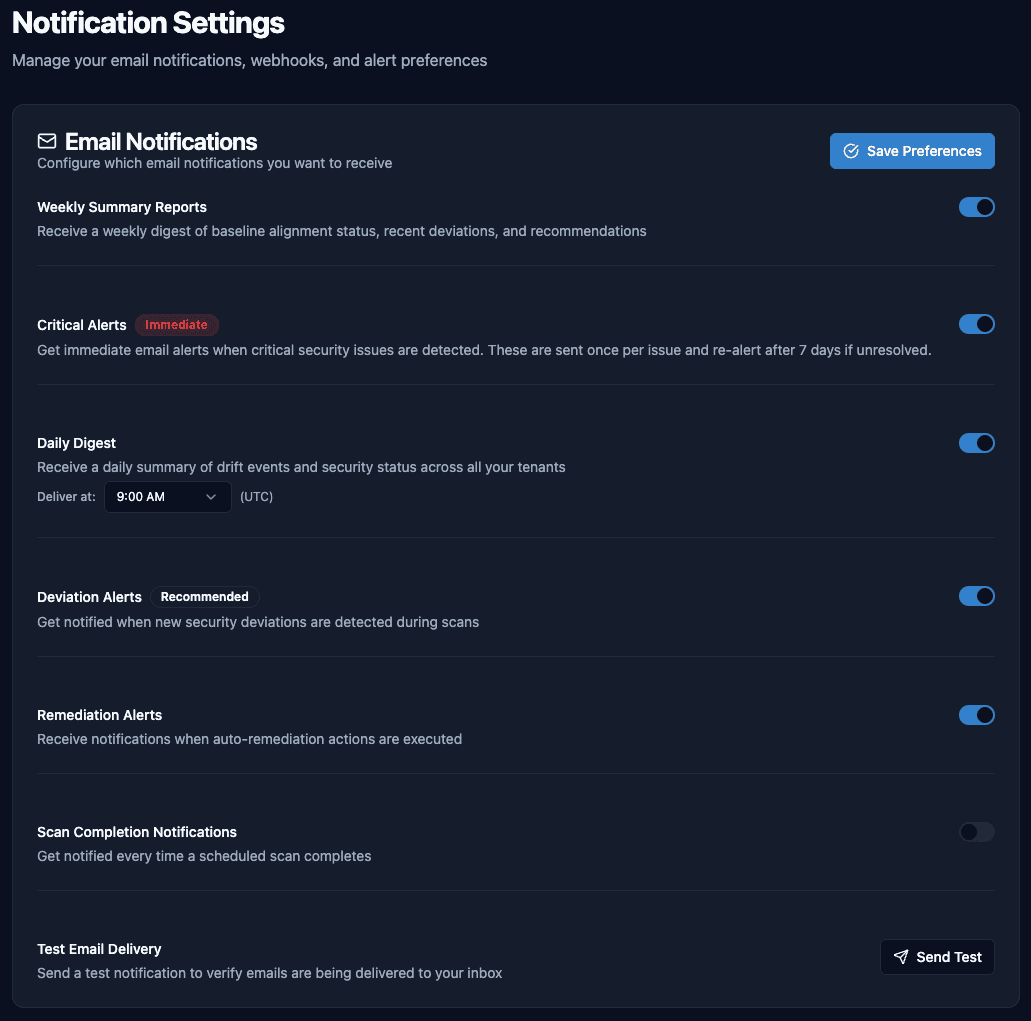
Email notifications are sent to organization administrators when security events occur. Each admin can control their individual email preferences.
How to Configure
- Navigate to Settings in the main menu
- Select the Notifications tab
- Toggle Email Notifications on
- Choose which event types to receive emails for
- Set your severity threshold (e.g., only critical and high)
- Click Save
Microsoft Teams Integration
Send security alerts to a Microsoft Teams channel using an incoming webhook. This is ideal for security operations teams who monitor a shared channel.
Step 1: Create Teams Webhook
- Open Microsoft Teams and navigate to your security alerts channel
- Click the ... menu next to the channel name
- Select Manage channel
- Go to Connectors (or Settings → Connectors)
- Find Incoming Webhook and click Configure
- Give it a name like "TrueConfig Alerts"
- Click Create and copy the webhook URL
Step 2: Add Webhook to TrueConfig
- In TrueConfig, go to Settings → Notifications
- Find the Microsoft Teams section
- Paste your webhook URL
- Click Test Connection to verify it works
- Configure which events to send to Teams
- Click Save
Example Teams Message
Tenant: Contoso Corp (contoso.onmicrosoft.com)
Control: PA-01: Excessive Privileged Accounts
Status: FAIL
Details: 5 permanent Global Administrators detected (max: 3)
Slack Integration
Send security alerts to a Slack channel using an incoming webhook. Perfect for teams already using Slack for operations.
Step 1: Create Slack Webhook
- Go to api.slack.com/apps
- Click Create New App → From scratch
- Name it "TrueConfig" and select your workspace
- Go to Incoming Webhooks in the sidebar
- Toggle Activate Incoming Webhooks on
- Click Add New Webhook to Workspace
- Select the channel for alerts and click Allow
- Copy the webhook URL
Step 2: Add Webhook to TrueConfig
- In TrueConfig, go to Settings → Notifications
- Find the Slack section
- Paste your webhook URL
- Click Test Connection to verify it works
- Configure which events to send to Slack
- Click Save
Daily Digest
Instead of receiving individual alerts for each event, you can opt for a daily digest that summarizes all security events from the past 24 hours.
What's Included
- Summary of control pass/fail counts
- New drift events detected
- Remediation actions taken
- Overall posture score change
- Upcoming credential expirations
How to Enable
- Go to Settings → Notifications
- Enable Daily Digest
- Choose delivery time (default: 8:00 AM local)
- Select channels (email, Teams, Slack)
Severity Filtering
Control notification volume by filtering based on severity. By default, only critical and high severity events trigger immediate notifications.
| Severity | Default Behavior | Example Events |
|---|---|---|
| Critical | Real-time notification | MFA disabled for admin, Global Admin added |
| High | Real-time notification | Excessive admins, legacy auth enabled |
| Medium | Daily digest only | App missing owner, stale accounts |
| Low | Daily digest only | Approaching thresholds, info items |
Customizing Severity Filters
You can adjust these defaults per notification channel:
- Email: Critical and High (default)
- Teams: All severities (for SOC channels)
- Slack: Critical only (for executive visibility)