Drift Detection
TrueConfig continuously monitors your Microsoft 365 tenant for configuration changes that deviate from your baseline. When drift occurs, you get detailed information about what changed, who changed it, and when.
What is Drift?
Drift occurs when your Microsoft 365 configuration changes between scans in a way that violates your baseline controls. This could be an administrator adding a new Global Administrator, disabling MFA for a user, or modifying a Conditional Access policy.
Configuration Drift
Changes to your security settings that move your environment away from your defined baseline state.
Baseline Violations
Specific controls that fail evaluation due to the configuration change, with remediation guidance.
3-Phase Drift Detection
TrueConfig uses a comprehensive 3-phase approach to detect drift, ensuring maximum accuracy and actor attribution when available.
Audit Log Drift
The preferred method for detecting changes. TrueConfig reads Microsoft Entra audit logs to identify exactly who made what change and when.
What You Get
- Actor Attribution: The specific user or service principal that made the change
- Precise Timestamp: Exact time the change occurred
- Change Details: Before and after values for modified properties
- IP Address: Where the change was initiated from (when available)
Baseline Analysis
Every scan evaluates your current configuration against your baseline controls. When a control that was passing now fails, TrueConfig records this as drift.
What You Get
- Control Status Change: Which controls changed from Pass to Fail
- Violation Details: Specific evidence of what violated the control
- Remediation Guidance: Step-by-step instructions to fix the drift
- Severity Level: Critical, High, Medium, or Low impact
Snapshot-Based Drift
A guaranteed fallback that compares the current scan snapshot with the previous scan. This catches any changes that weren't logged or where audit logs are unavailable.
What You Get
- Before/After Comparison: The configuration state before and after
- Change Window: The time range when the change occurred
- Complete Coverage: Catches changes that bypass audit logs
Understanding Drift Events
When drift is detected, TrueConfig creates a drift event with comprehensive details about what changed.
Example: Excessive Global Administrator
Before
Global Administrators: 2
- admin@contoso.com
- breakglass@contoso.com
After
Global Administrators: 4
- admin@contoso.com
- breakglass@contoso.com
- john.smith@contoso.com
- jane.doe@contoso.com
Actor
admin@contoso.com
Timestamp
2024-01-15 14:32:17 UTC
Control Affected
PA-01: Limit Global Administrators
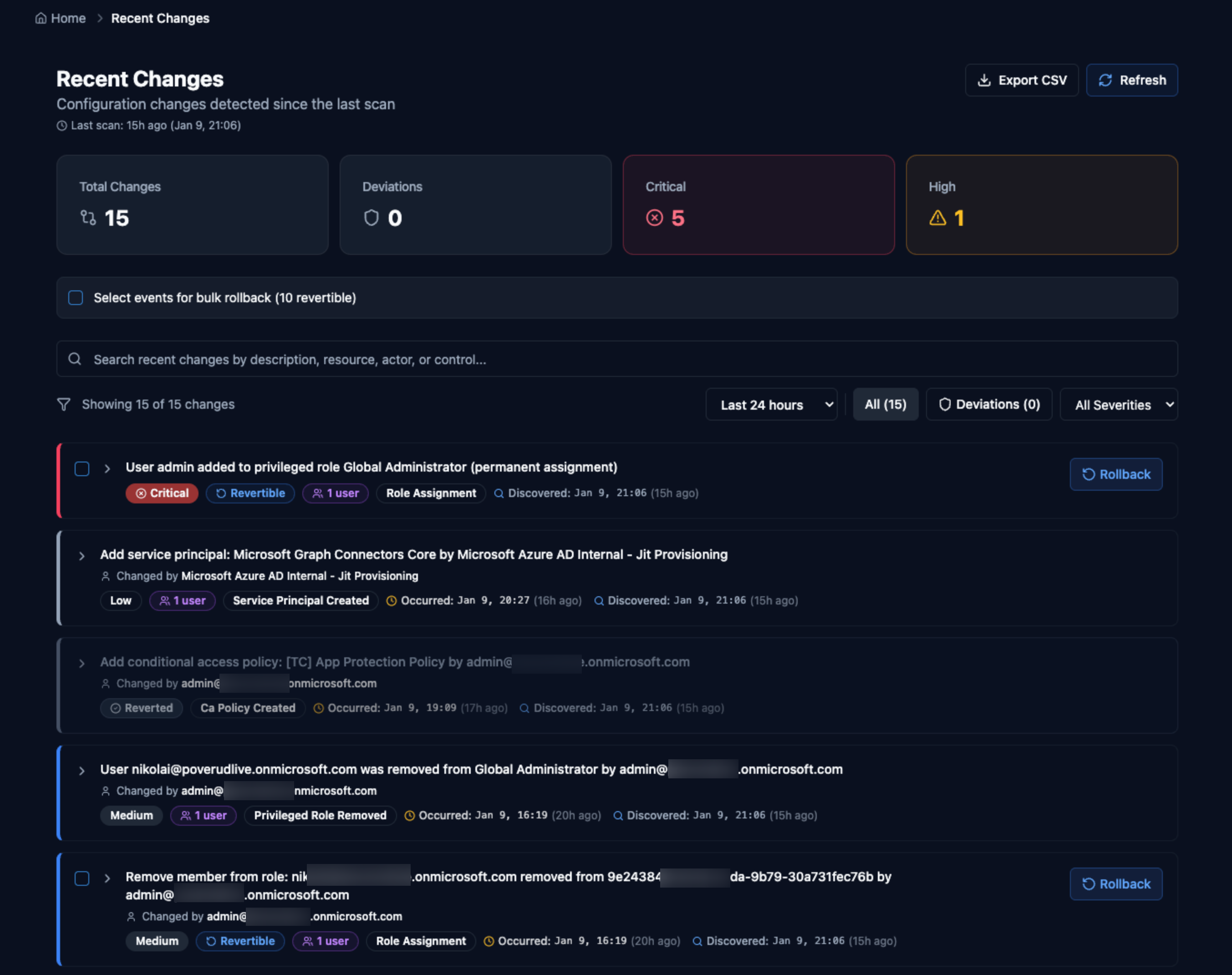
Rollback Capabilities
When drift is detected, TrueConfig provides options to restore your configuration to the desired state.
Video: See how to identify drift events and roll back unwanted changes in TrueConfig.
Single Rollback
ProRevert a specific drift event to restore the previous configuration state. Ideal for quick fixes to individual changes.
- One-click rollback for supported controls
- Preview changes before applying
- Full audit trail of rollback actions
Bulk Rollback
ScaleRevert multiple drift events at once to quickly restore your tenant to a known-good state. Essential for incident response.
- Select multiple drift events to rollback
- Batch processing with safety checks
- Rollback to a specific point in time
Best Practices
Enable Audit Log Retention
Ensure Microsoft Entra audit logs are retained for at least 30 days to get accurate actor attribution for drift events.
Configure Regular Scans
Schedule scans at least daily to catch drift quickly. More frequent scans (hourly) provide faster detection but increase API usage.
Set Up Notifications
Configure email or webhook notifications for critical drift events so your team can respond immediately.
Review Before Rollback
Always review drift details before rolling back. Some changes may be intentional updates that require baseline adjustments instead.