Scanning & Schedules
TrueConfig scans collect data from your Microsoft 365 tenant and evaluate it against your baseline controls. Configure scan schedules to maintain continuous security visibility.
What Happens During a Scan
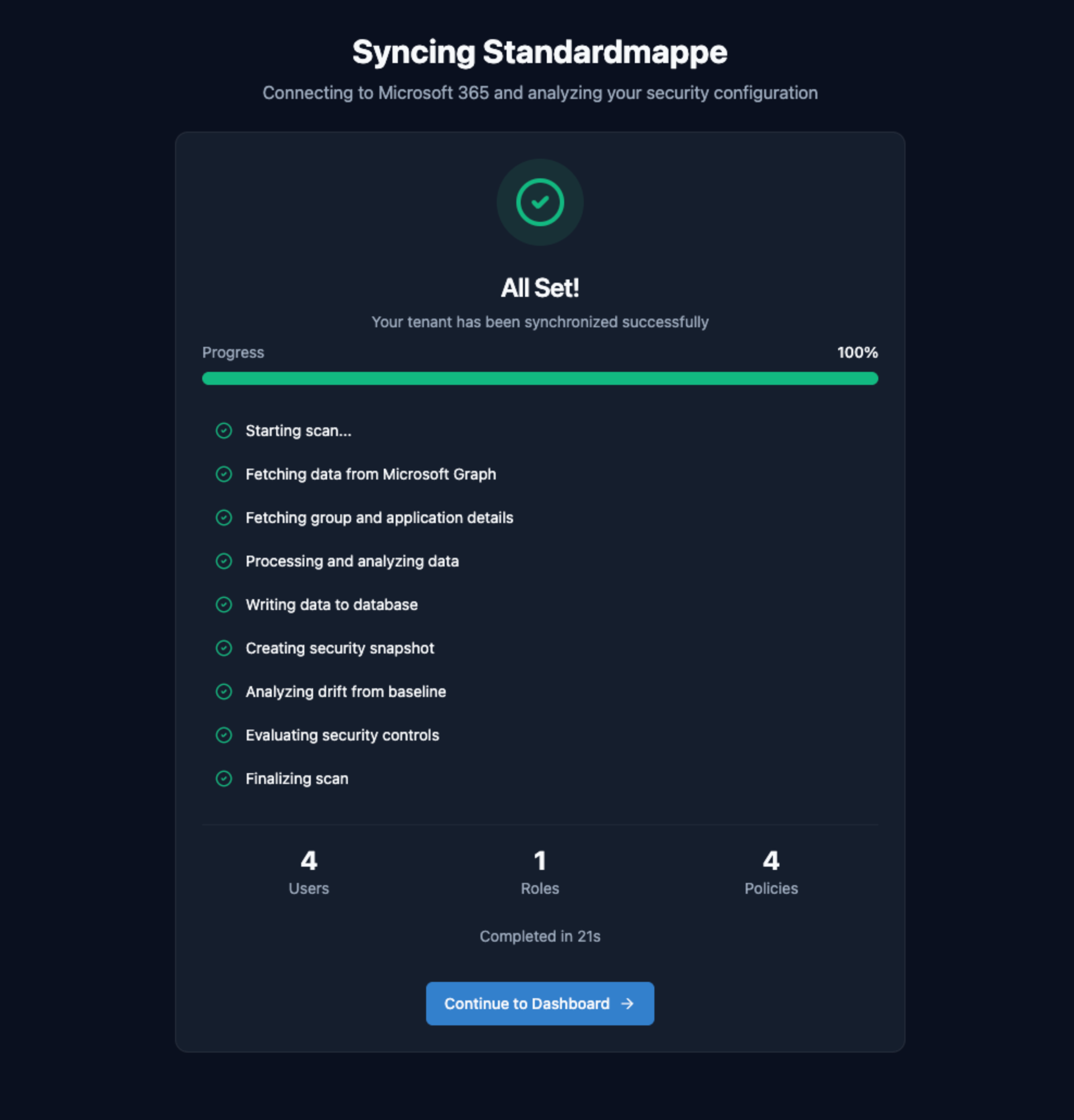
Each scan executes 8 phases to collect data from Microsoft Graph API, normalize it into scan tables, and evaluate your baseline controls. Understanding these phases helps you troubleshoot issues and optimize scan performance.
8-Phase Scan Process
Initialize
Validate credentials, check tenant connectivity, and prepare the scan context. Creates a new scan record in the database.
Fetch Users
Retrieve all user accounts from Microsoft Graph, including sign-in activity, MFA registration status, and account properties. Paginates through large user sets automatically.
Fetch Roles & Assignments
Collect directory role definitions and role assignments. Identifies privileged accounts, PIM-eligible assignments, and break-glass accounts.
Fetch Applications
Retrieve app registrations and service principals. Checks credential expiration, owner assignments, and dangerous permission grants.
Fetch Policies
Collect Conditional Access policies, authorization policies, and security defaults. Analyzes MFA requirements, legacy auth blocks, and guest access settings.
Fetch Groups
Retrieve security groups and role-assignable groups. Maps group memberships for role assignment controls.
Evaluate Controls
Run all baseline controls against the collected data. Each control produces a pass/fail/warning status with evidence and remediation guidance.
Finalize & Detect Drift
Compare results to previous scan, detect configuration drift, create audit events, and update tenant posture score. Triggers notifications for failed controls.
Manual vs Scheduled Scans
Manual Scans
Trigger a scan on-demand from the dashboard. Useful for:
- Verifying a remediation was successful
- Checking posture after making changes
- Initial baseline validation
- Investigating a reported issue
Scheduled Scans
Automatic scans run at configured intervals. Benefits:
- Continuous monitoring without manual effort
- Immediate drift detection
- Historical trend data for reporting
- Automated notifications on failures
Configuring Scan Frequency
Choose a scan frequency that balances security visibility with API quota consumption. Most organizations use daily scans, with critical tenants on hourly schedules.
| Frequency | Best For | Considerations |
|---|---|---|
| Hourly Scale | High-security environments, rapid change detection | Higher API quota usage, more notifications |
| Every 6 hours Pro | Active environments, same-day drift detection | 4 scans per day, catches drift within 6 hours |
| Daily (Recommended) | Most organizations, balanced monitoring | Good coverage with minimal overhead |
| Weekly | Stable environments, compliance reporting | May miss short-lived misconfigurations |
| Monthly | Compliance snapshots, low-change tenants | Not recommended for active monitoring |
How to Configure
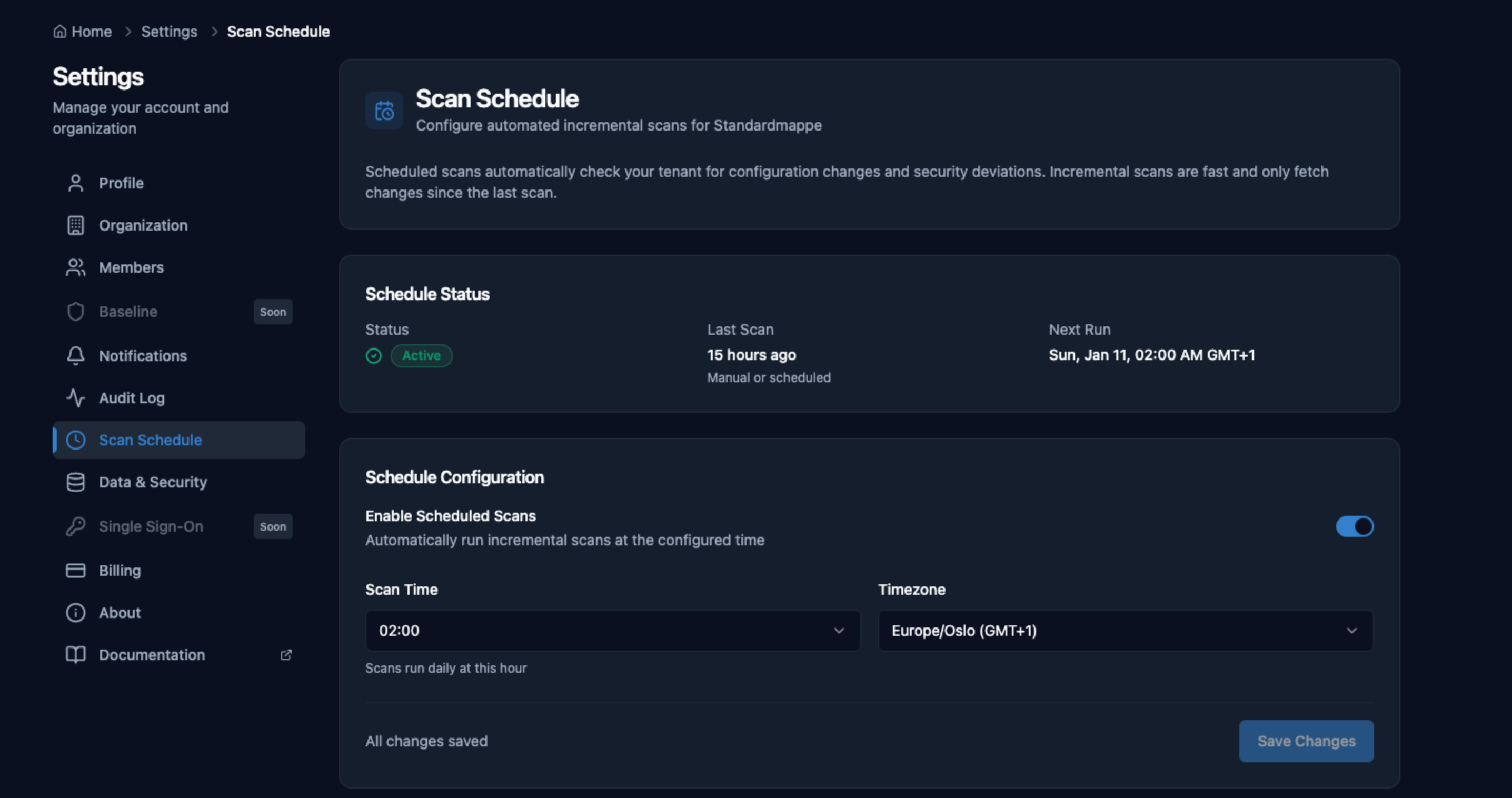
- Navigate to Settings in the main menu
- Select the tenant you want to configure
- Find the Scan Schedule section
- Choose your preferred frequency from the dropdown
- Optionally set a preferred time window (e.g., "overnight")
- Click Save to apply changes
Scan Performance Expectations
Scan duration depends on tenant size - primarily the number of users, applications, and policies. Here's what to expect:
| Tenant Size | Users | Typical Duration |
|---|---|---|
| Small | < 100 users | 1-2 minutes |
| Medium | 100-1,000 users | 2-5 minutes |
| Large | 1,000-10,000 users | 5-15 minutes |
| Enterprise | > 10,000 users | 15-30 minutes |
For tenants with more than 10,000 users, scans may take up to 30 minutes. TrueConfig automatically:
- Paginates through user data to avoid timeouts
- Respects Microsoft Graph rate limits with automatic retry
- Uses chunked processing for role and group memberships
Posture-Only Scan Mode
Posture-only mode skips drift detection and remediation checks, focusing solely on evaluating your current security posture. This is useful for:
Faster Scans
Skip drift comparison and historical analysis for quicker results.
Point-in-Time Snapshots
Get current state without triggering notifications or audit events.
Initial Assessment
Evaluate a tenant before committing to a baseline.
Compliance Reporting
Generate compliance snapshots without affecting operational alerts.
Common Scan Issues
Scan Timeout
Large tenants may hit the 30-minute scan timeout. Solutions:
- Retry the scan - transient Graph API issues often resolve
- Check Microsoft 365 service health for outages
- Contact support if timeouts persist
Rate Limiting (429 Errors)
Microsoft Graph enforces rate limits. TrueConfig automatically retries with exponential backoff, but sustained throttling may cause scan delays.
- Reduce scan frequency if hitting limits frequently
- Avoid running manual scans during scheduled windows
- Stagger scan times across multiple tenants
Missing Data
Some controls may show "Data unavailable" if required Graph permissions are missing.
- Check the Connection Issues troubleshooting guide
- Verify all 8 required permissions are granted
- Ensure admin consent was provided for application permissions